Run cTAKES from the terminal interface
The TUI keeps one clinical run in a fixed sequence: verified installation, fictional known-answer test, no-write batch check, background extraction, post-run read-back, local review, and two-file handoff. Each screen names the current state and the next permitted action, so a complete note count cannot be mistaken for an accepted delivery.
concepts.csvThe 13-column concept extract.
drugs.csvThe 16-column medication and RxNorm extract.
SQLite, receipts, logs, manifests, optional XMI/browser HTML, and prepared-note receipts support audit, review, and recovery. Do not include them in the routine handoff unless the protocol owner explicitly requests them and the transfer is approved.
Install and run the known-answer test
The main branch keeps the source current. Setup downloads the release-matched immutable assets, verifies their checksums, chooses the newest supported Python already on the machine, and creates a private virtual environment. It does not replace the system Python.
Clone without executing the checkout
git clone --branch main --depth 1 https://codeberg.org/editnori/Ctakes_USD.git Ctakes_USDVerify the local checkout
A pass prints Verified clean main checkout: and the local commit ID. If the exact-remote, branch, or clean-state check fails, stop.
test "$(git -C Ctakes_USD remote get-url origin)" = "https://codeberg.org/editnori/Ctakes_USD.git" && test "$(git -C Ctakes_USD branch --show-current)" = "main" && test -z "$(git -C Ctakes_USD status --porcelain)" && printf 'Verified clean main checkout: ' && git -C Ctakes_USD rev-parse --short=12 HEADRun setup from the verified checkout
cd Ctakes_USD && bash scripts/setup.sh --tui && ./ctakes verify && ./ctakes tuiAfter installation, reopen the interface from any folder with ctakes tui. If the shell has not refreshed its PATH, enter the repository and use ./ctakes tui.
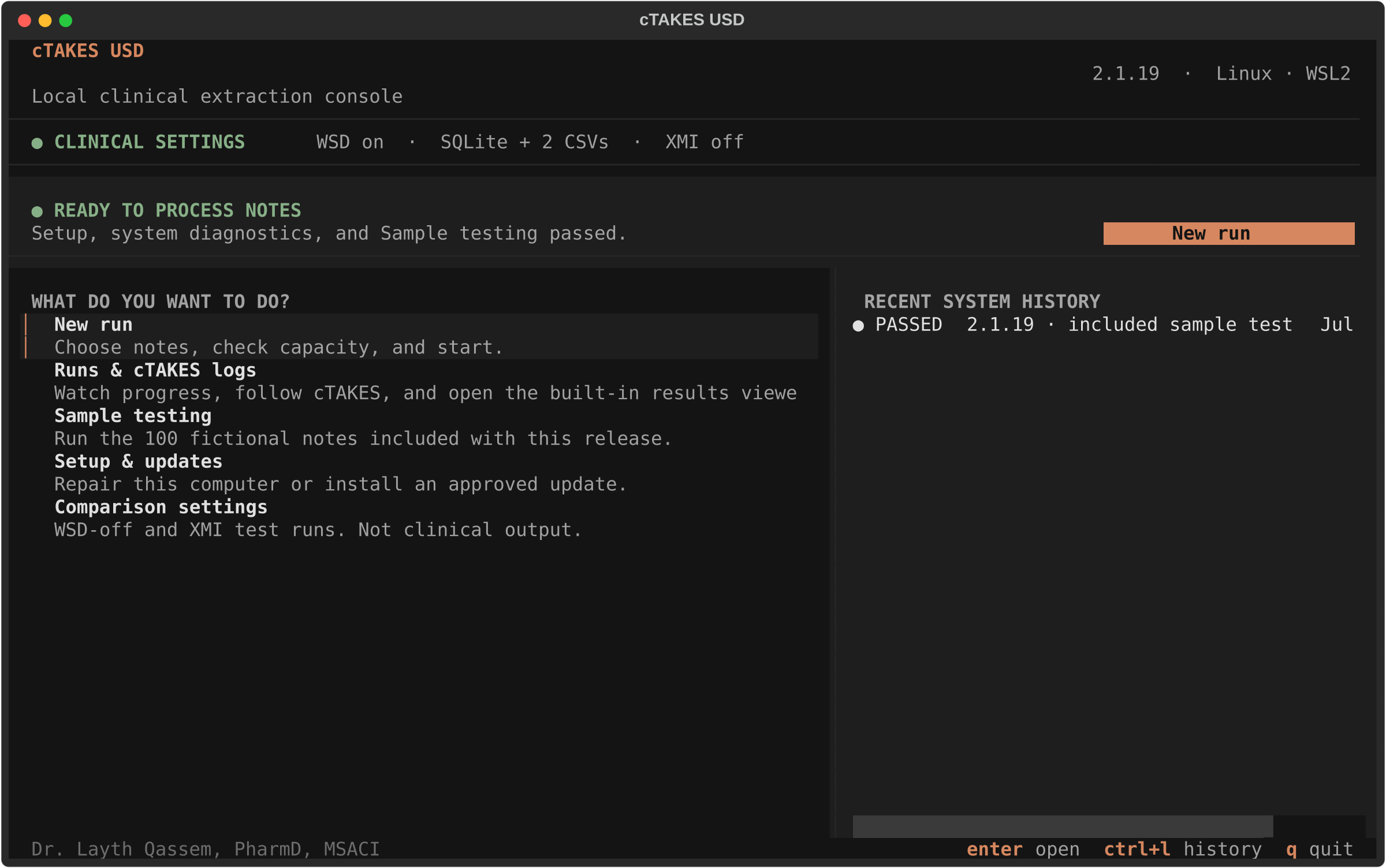
Confirm the home screen says ready
The green ready banner means setup, system diagnostics, and the included sample test have passed. If the screen instead offers Run sample test, run it before selecting clinical notes. Then choose New run.
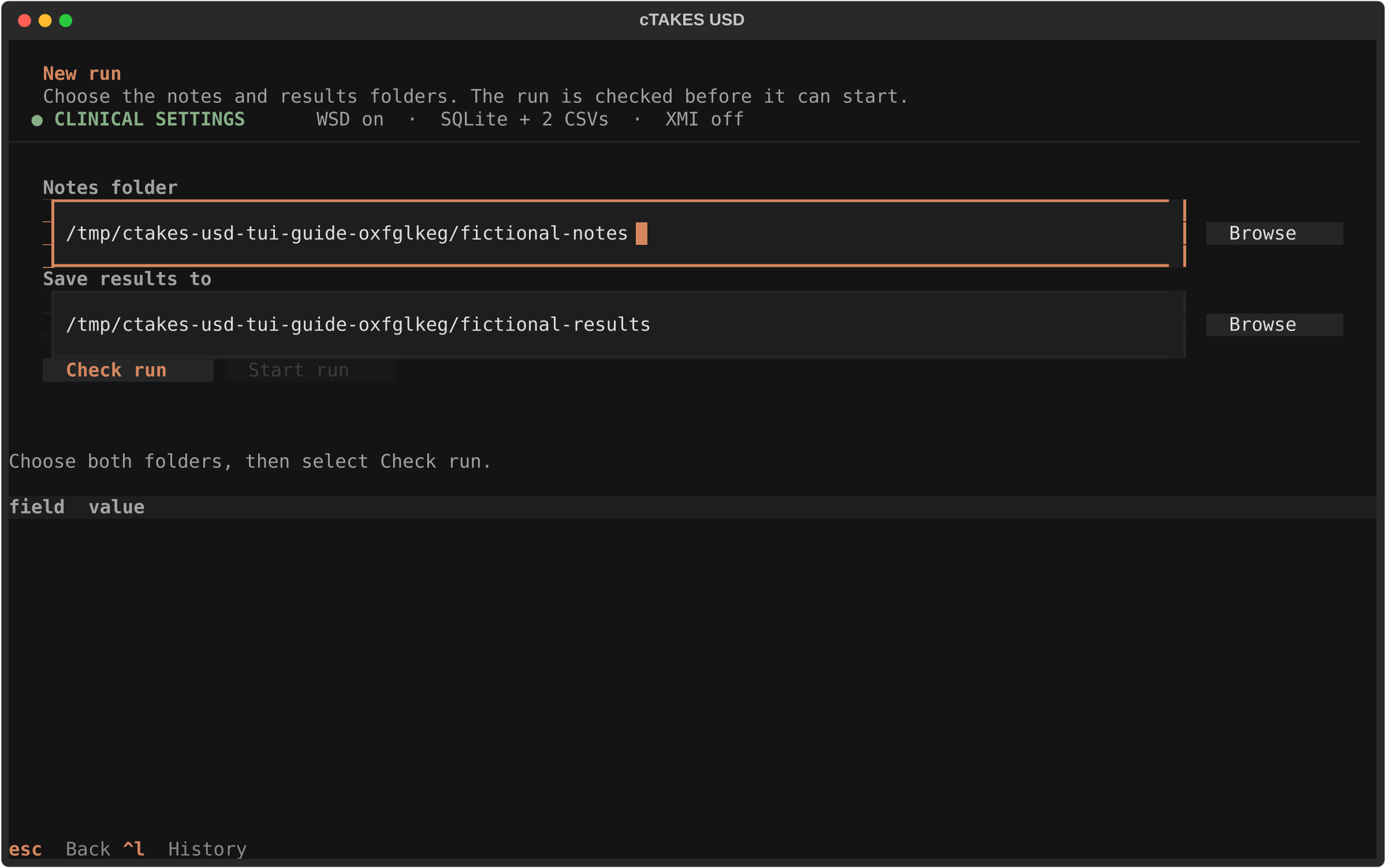
Choose the note folder and results folder
Select the approved folder containing the input notes, then select or accept a separate results folder. The note folder may contain subfolders, but it must contain only .txt notes. Keep XML, CSV, and other files outside it.
- Each filename begins with literal
USDHUBplus exactly 20 digits. - A period separates that HubID from a safe NoteID, followed by
.txt. - Letters, digits, periods, underscores, and hyphens are allowed inside NoteID; dots inside NoteID are valid.
- If the source names use PID or HID instead, use Prepare compatible copy. Preview the mapping and write a new private copy; do not rename the originals in place.
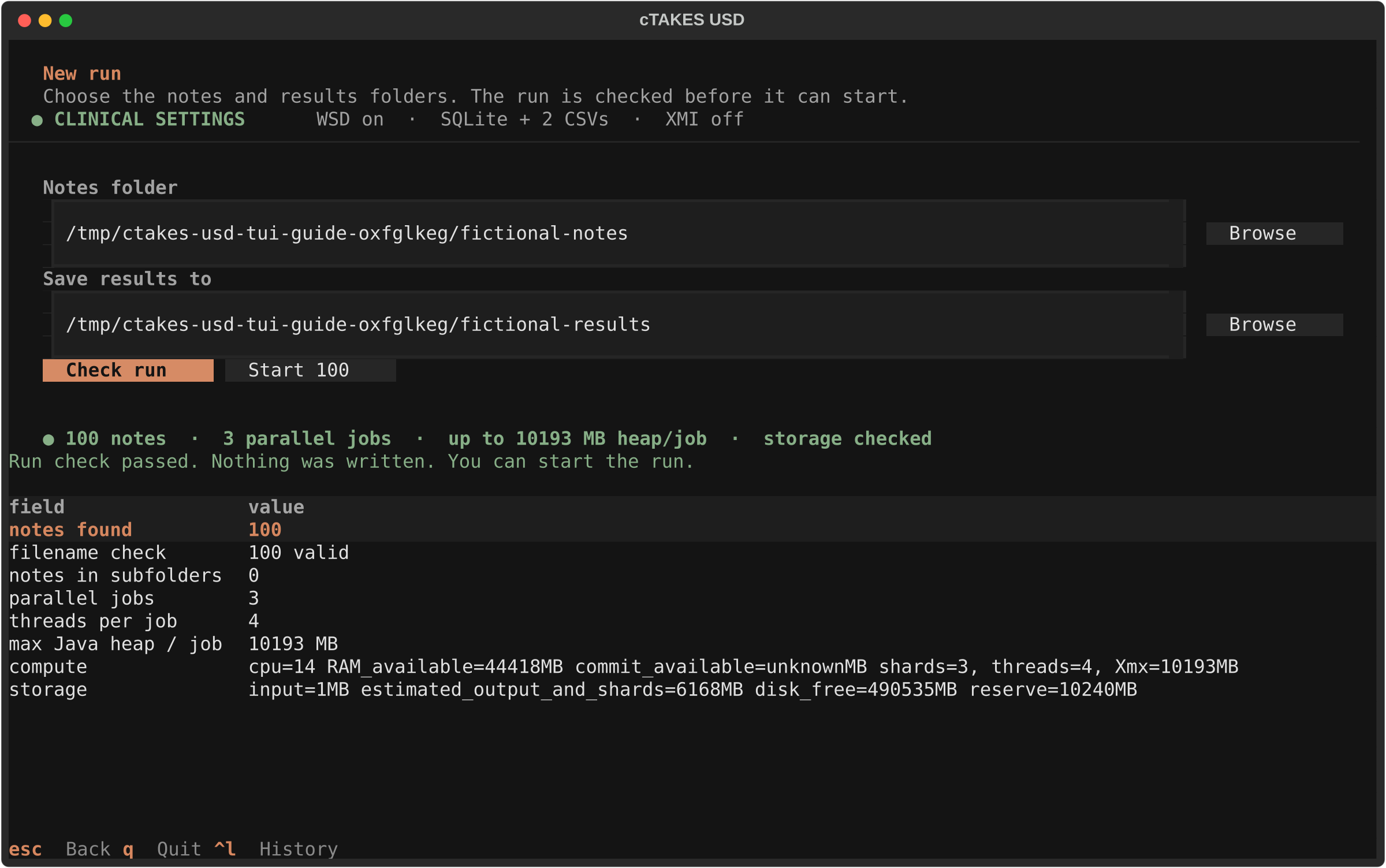
Run Check and read the summary
Choose Check run. This is a no-write preflight: it scans the note set, validates every filename, estimates storage, checks CPU and memory, and confirms the release-matched dictionary, WSD model, and SQLite driver. On a large folder, the summary is intentionally aggregated rather than printing thousands of repeated filename errors.
Confirm that the note count, folder, clinical settings, capacity, and storage estimate match what you intend to run. Start remains disabled until every required gate passes.
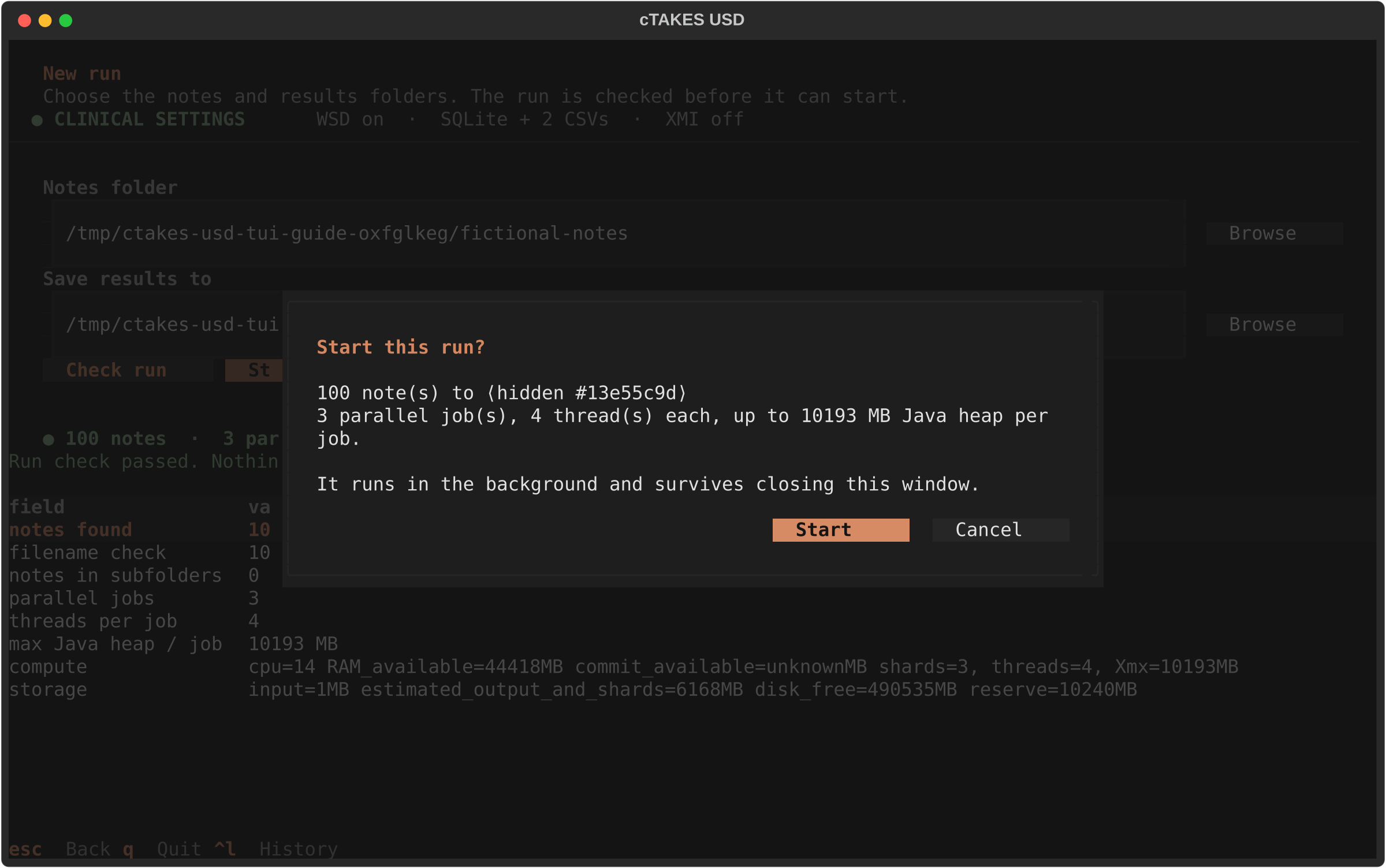
Confirm the clinical run and background handoff
Choose the Start button labeled with the note count, such as Start 100. Read the confirmation and continue only if the displayed folders, note count, and clinical settings are correct. The default is the STAR recipe, strict filenames, WSD on, SQLite plus two CSVs, XMI off, automatic capacity scaling, and final sanity checking.
The controller records the job before starting cTAKES and waits for a background-process handshake. Do not close the window until the confirmation says the background run has started.
Monitor progress, or leave and reconnect later
Runs & cTAKES logs shows the current phase, completed notes, elapsed time, rate, remaining-time estimate, CPU, memory, and storage. Sharded runs aggregate validated shard progress into the same job row. During startup, the total can temporarily show as unknown; rate and remaining time begin after notes finish.
Once the background-start handshake completes, leaving the TUI or losing the SSH session does not intentionally stop the controller. Reconnect and run ctakes tui to reopen the saved job. If the host or process actually stops, the TUI reconstructs the recorded state and offers recovery only from shards that validate against the same analysis and input identities.
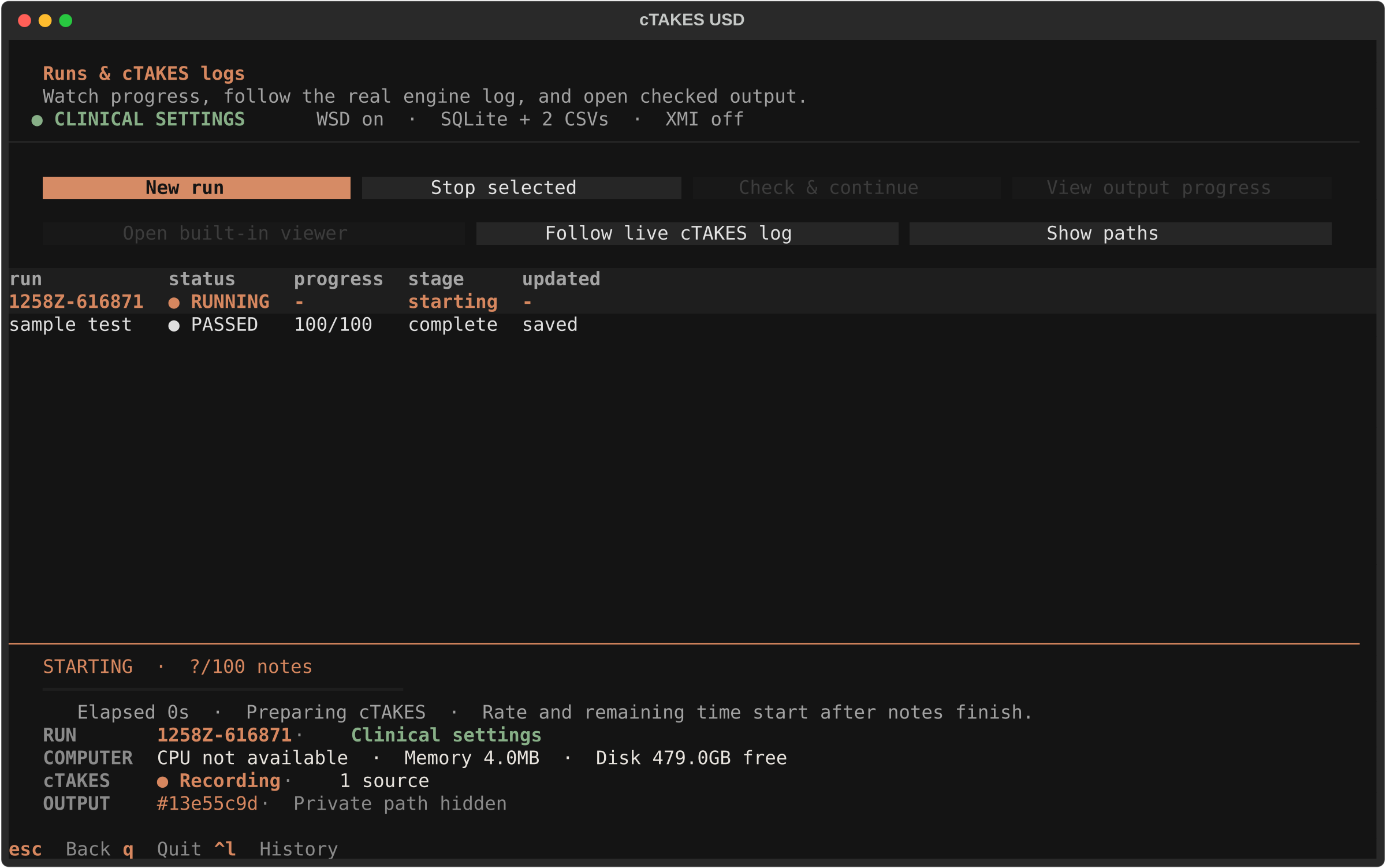
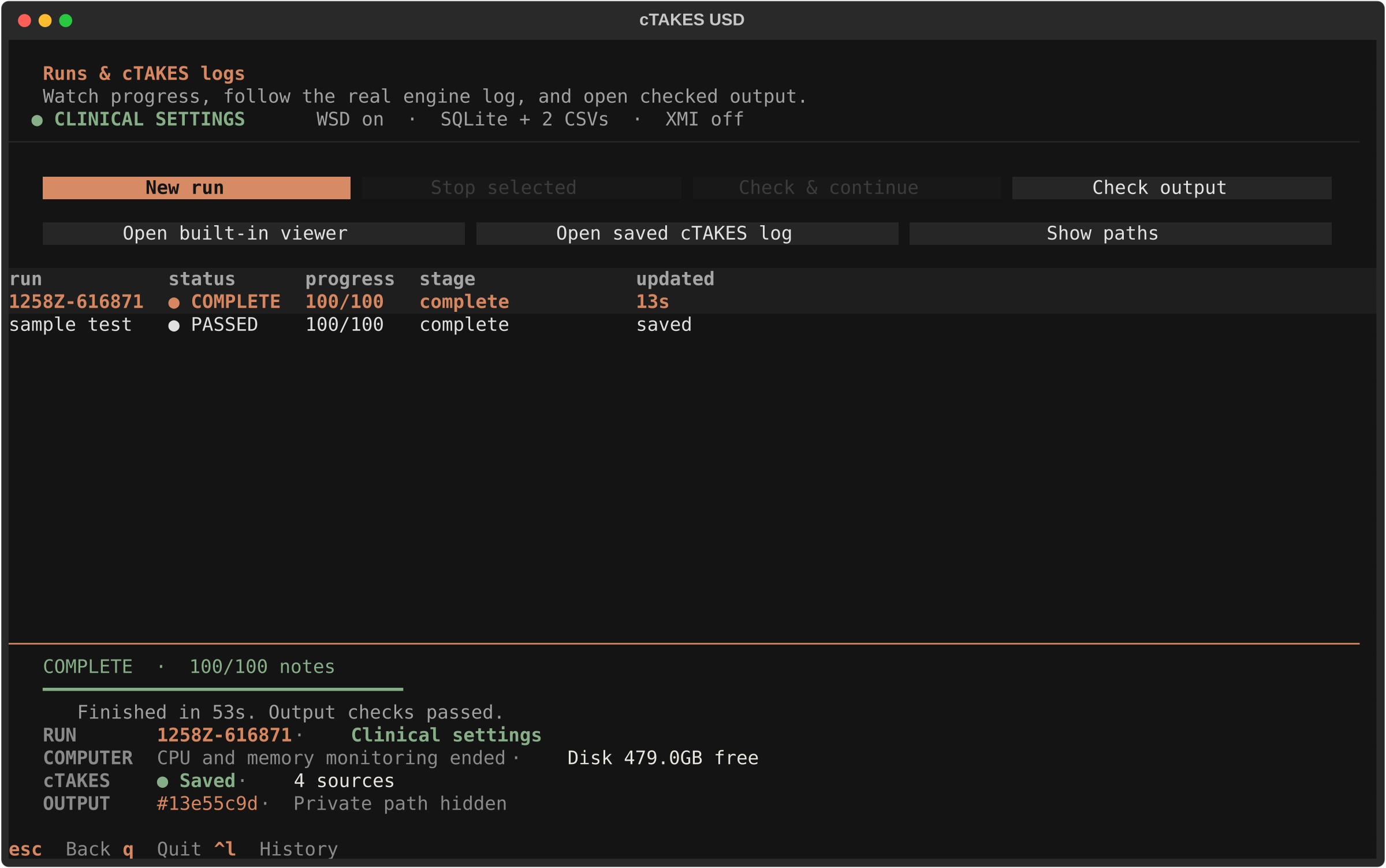
Wait for PASSED, not only 100% notes
When all notes finish, the run can remain in CHECKING or FINALIZING while it builds indexes, exports the two CSVs, reads them back against SQLite, validates hashes and receipts, and writes the completion state. Accept the run only when it shows PASSED, the run manifest is complete, and the sanity report passes.
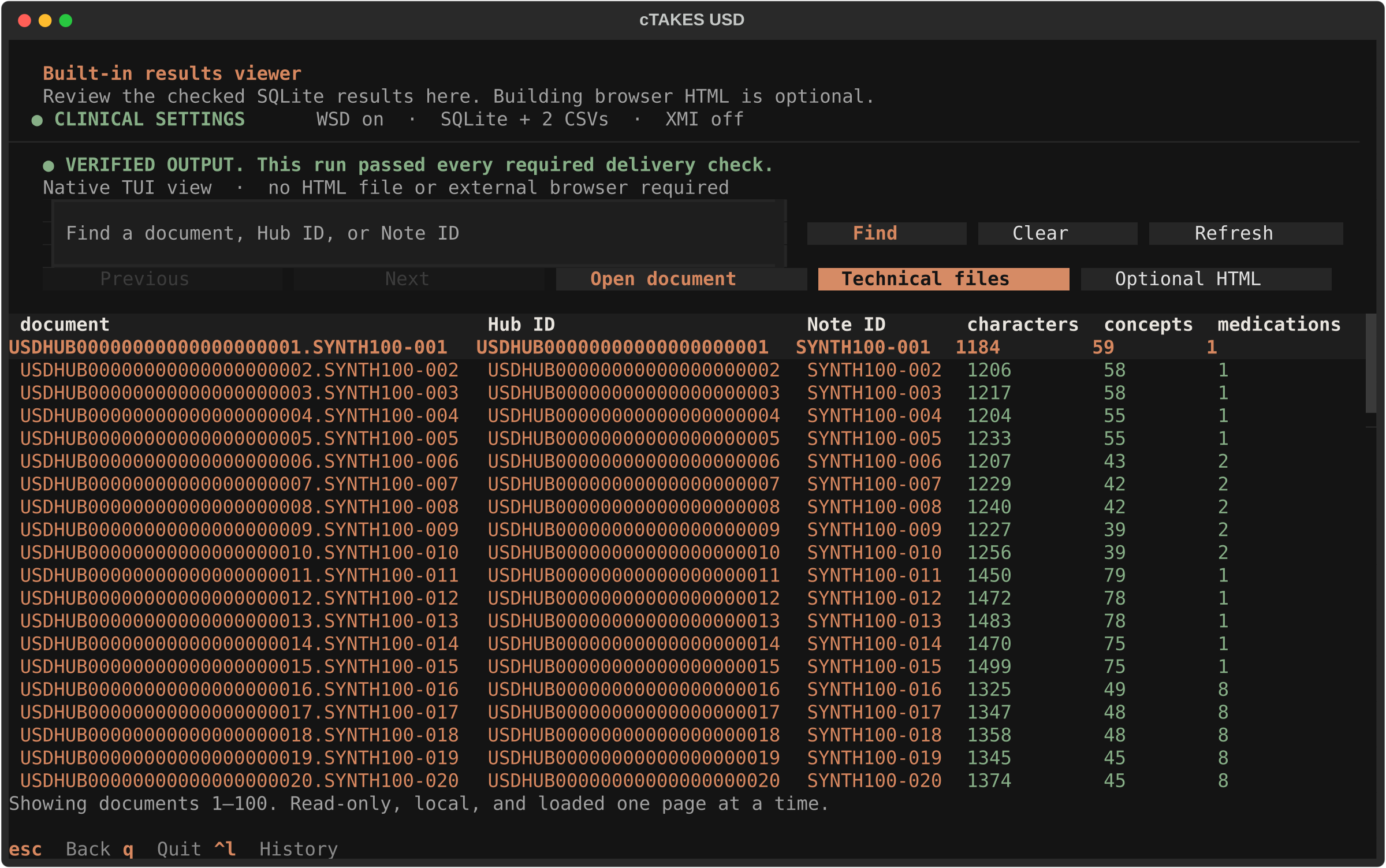
Review the checked result inside the TUI
Select the passed run and choose Open built-in viewer. The viewer opens the receipt-bound SQLite database and lets an approved reviewer page through notes, concepts, and medications. Selecting a row highlights its exact source phrase. No separate browser file is required.
Read the canonical role and exact file to send in one place
After a clinical run passes, the detached controller creates one private folder-named copy for each checked CSV. Nothing is uploaded or sent. Return to the passed run and choose Check output. The concept row reads concepts.csv (canonical) → …--concepts.csv (file to send), and the medication row uses the same shape. The left name is the stable internal role. The right name is the physical file to send.
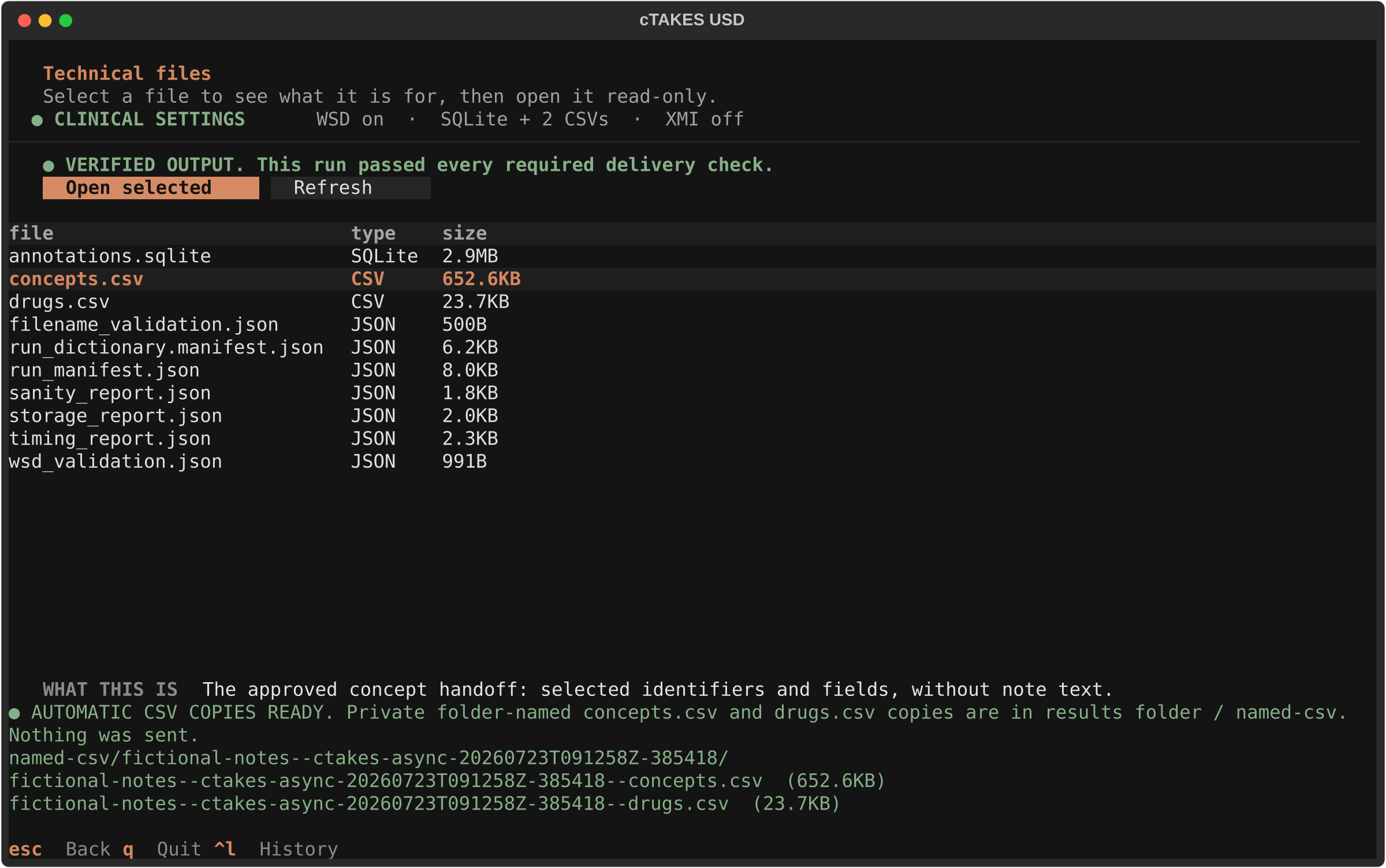
The passing sanity check already compares both CSVs with the accepted SQLite views and records their hashes. The automatic action reuses that bound proof, writes owner-only copies while hashing them, and writes a small receipt, so it does not repeat the full SQLite parity scan. The copy name is deterministic, so a retry verifies the same published bytes or rebuilds only the wrapper's own unpublished staging directory. A changed published handoff fails closed and is not overwritten. If the copy needs disk or filesystem attention, the clinical run remains passed and shows HANDOFF ATTENTION with Retry automatic CSV copies. A verified older run without an automatic-copy record may show Prepare automatic CSV copies. Technical files reports AUTOMATIC CSV COPIES READY and keeps the canonical artifacts available for local review, but it does not repeat the handoff names.
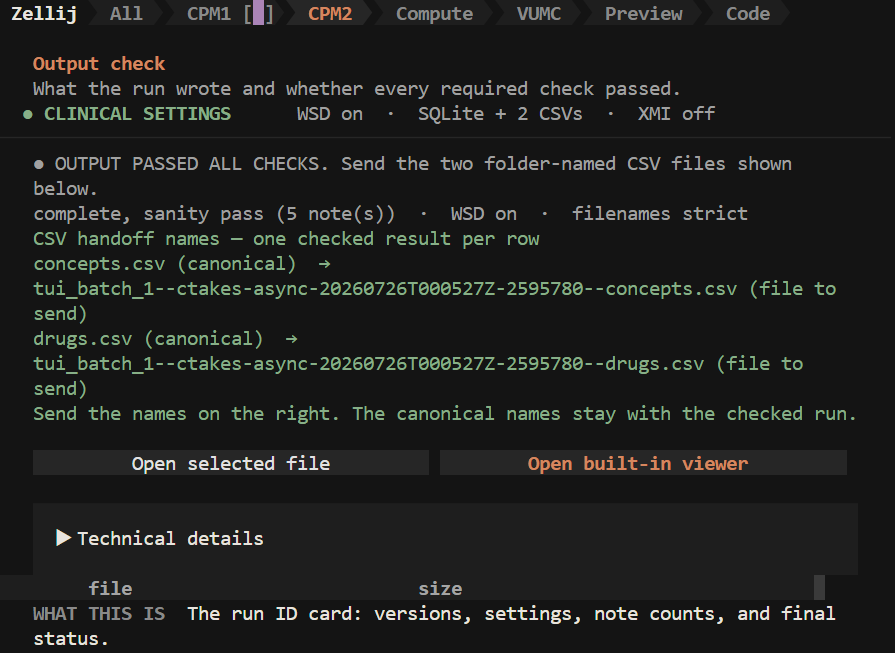
An exceptional extra labeled copy is a command-line-only option: ./ctakes handoff <job-id> --name <safe-label>. Never put PHI in that label.
concepts.csv copy13 approved columns; generated from the passed run.
drugs.csv copy16 approved columns; generated from the same passed run.
Keep SQLite, JSON receipts, logs, manifests, the copy receipt, optional XMI, and optional browser HTML locally unless an explicit approved request expands the handoff.
Outputs and review lists every column in both delivery files and explains what each local artifact is used for.